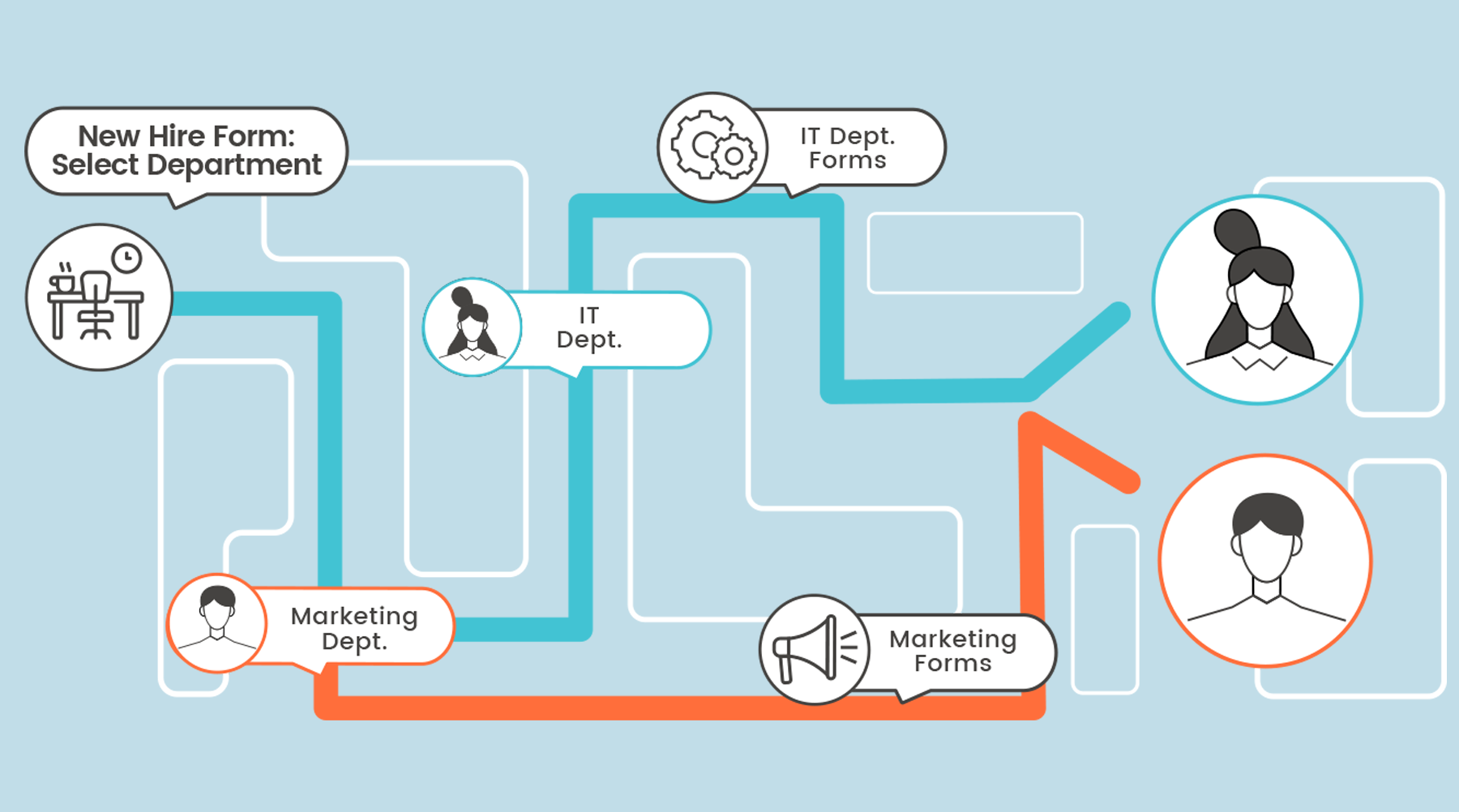
We are excited to announce a major feature release that many Tikit users have been asking for: Custom Properties and Multi-Turn Cards.
- Want to alter the core ticketing experience with your own optional/required fields?
- Looking for a custom list for Requesters to choose from when submitting a ticket?
- Wishing you could create conditionally dependent forms when creating a ticket?
- Needing to resend a Form to the Requester, Assignee, a Collaborator, or Affected User?
Now you can! Let’s dive in to how Custom Properties andMulti-Turn Cardsin Tikit work separately and together to bring you an even better Tikit experience.
Custom Properties: Creating and Modifying
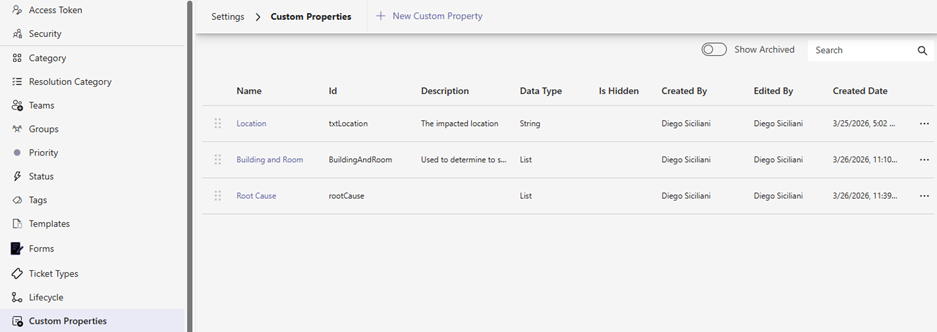
Access the new Customer Properties navigation mode in Settings. It’s here you can create, edit, archive/unarchive, delete, and re-order how your properties appear across the Agent portal and Teams cards. Creating a new property is easy, just click on New Custom Property or click an existing property to edit it.
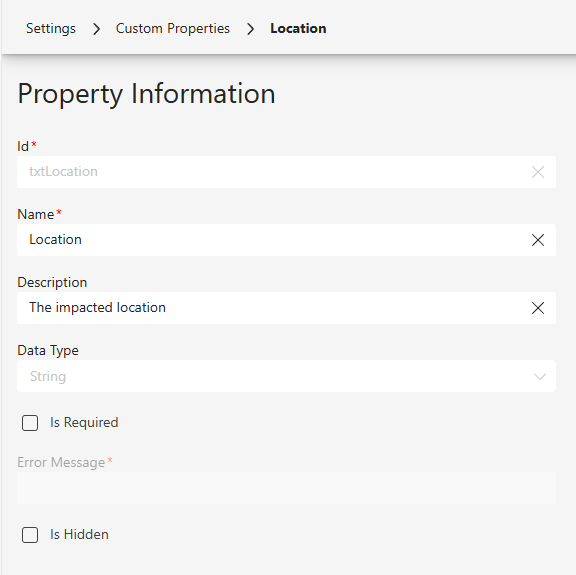
In this example, we’ve created a Custom Property called “Location”. The name is a simple text field (string). You can change the Name (friendly), Description, whether or not the property is required, the error message to display if it is a required field, and finally if the custom property is hidden from users.
Why would I create a hidden custom property?
With hidden properties you can create a field that exists on every ticket, but can’t be changed by anyone. So why bother? Because with Tikit’s Automation engine or custom API calls, you can set these fields behind the scenes, opening the door to creating fields for external integrations such as syncing monitoring alerts, security event IDs, CRM records, and more.
You can create any number of properties of any different types, such as:
- string (text)
- numbers
- yes/no (checkbox)
- list
- date
- time
While a free text field is helpful, it also opens the door for bad data since anything can be typed into the field. Which is why we’ve also introduced support for…
Custom Properties: Lists
With custom lists, you can now create any kinds of lists you need for your ticketing processes.
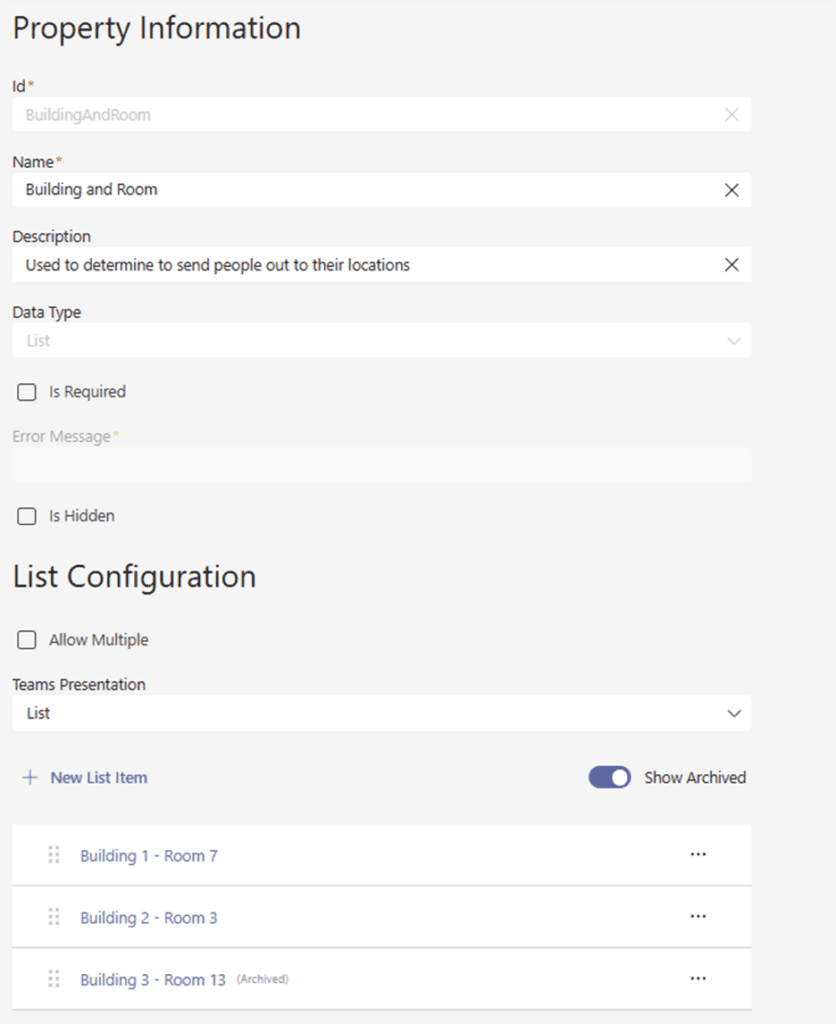
With a custom list, we can change a few things:
- Allow multiple: Much like Tags, you can decide if multiple items in this list can be chosen
- Teams Presentation: As with Forms, you can decide how in Teams this list is experienced. Is it a dropdown with all of the choices? Or is it a lookup/search of all of your available options?
- Individually Archive items: Apart from creating/deleting items in your list, you can also archive/unarchive items within the list as well.
And you can re-arrange those items at any point in time.
With your one or many properties saved, you will be returned to your list of all Custom Properties. Here you can re-arrange them. It’s worth noting that changes are saved and instantly replicated across Tikit. This order impacts how you’ll see Custom Properties when Creating a ticket, Editing a ticket, getting Teams notifications on the ticket, and more.
Where are Custom Properties Experienced?
Custom Properties can be used across many places in Tikit.
Build Automations and/or SLAs with them
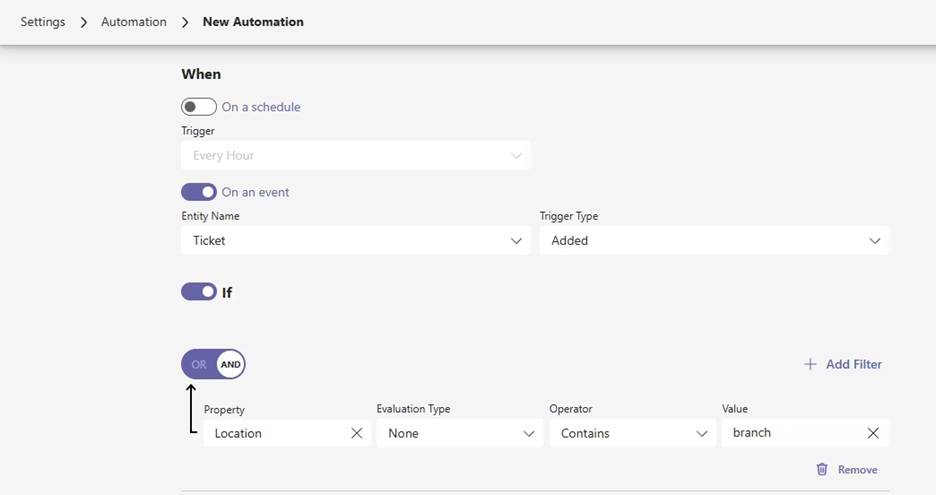
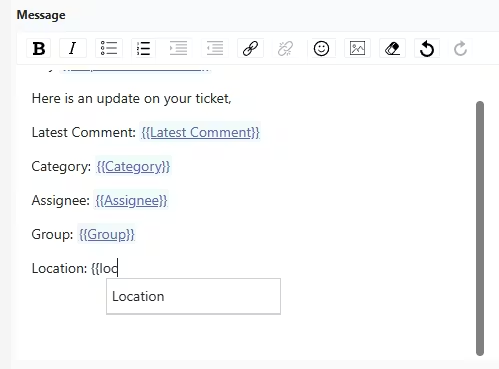
Use them in Notification Center automations
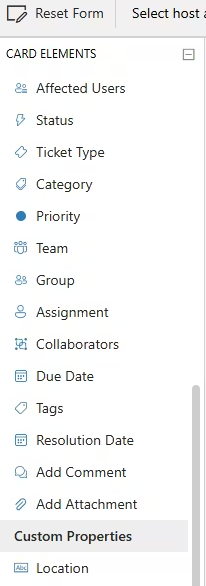
Form Designer
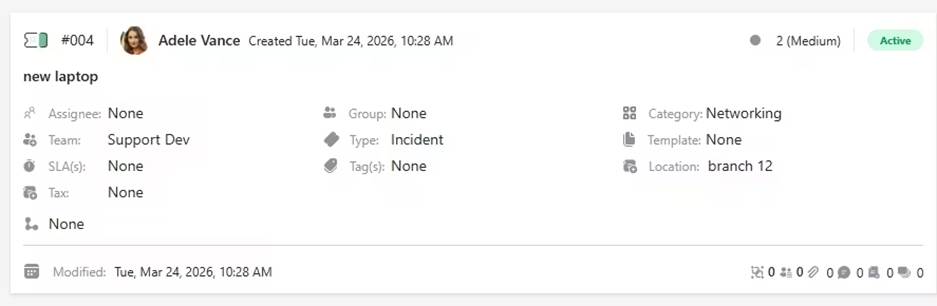
Create/Edit a ticket in the Agent portal
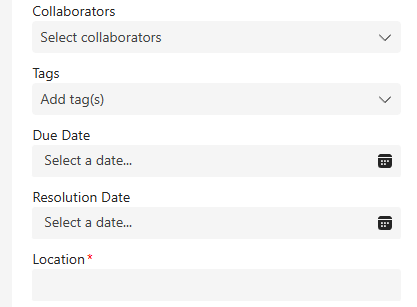
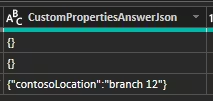
Power BI/Excel
Across all Templates
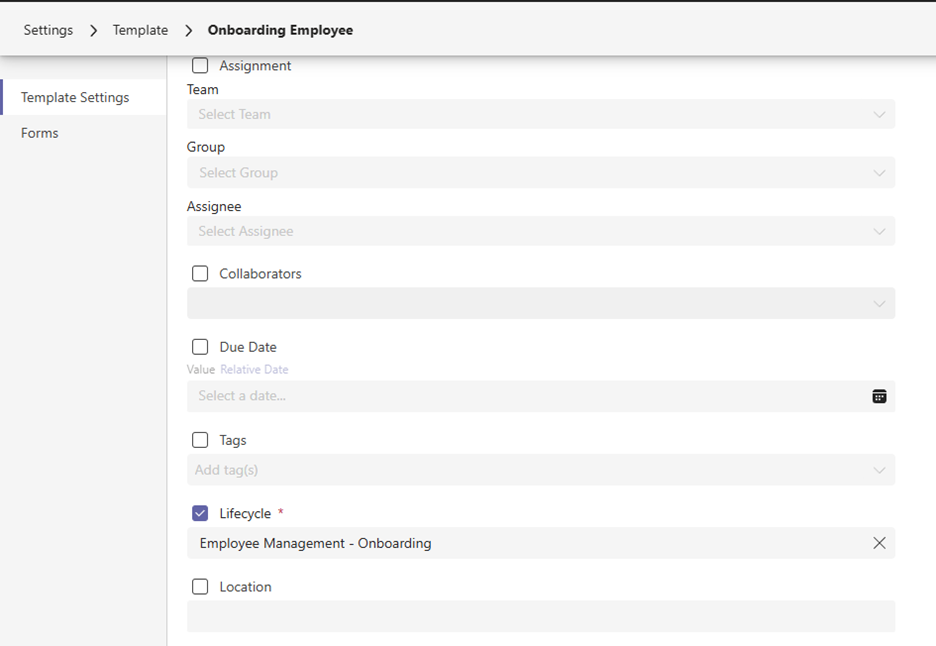
Speaking of Templates, take a closer look at the image above and you might notice our next huge release: Multi-Turn Cards.
What Are Multi-Turn Cards?
A longstanding request we’ve heard has been the ability to present multiple forms to a user to fill out, and conditionally present those forms based on how the previous form was completed. This would have several benefits:
- Large forms served via Tikit Virtual Agent, Requester Portal, or the Agent Portal could be condensed and/or split out into several smaller forms
- Large forms (30+ inputs) in some cases might become very small forms (less than 10 inputs) depending on how they are answered
- The Default Template: Requester Create Ticket Template could be modified to let users define their own Priority of a ticket and only if they choose High Priority, then a subsequent question appears asking for their contact information
- When building a New Hire/Onboarding Template, you could conditionally present New Hardware and New Software Forms depending on their Department or any other number of fields
So what do the new multi-turn cards mean for Templates and Forms?
Templates and Forms Have Been Split Out
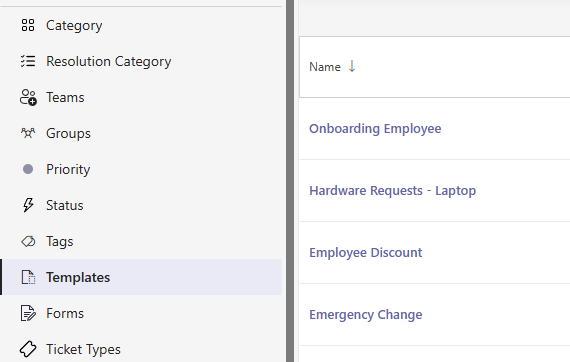
The biggest visual change you’ll see as a Tikit Admin, is that Templates and Forms have been separated. As a result:
- You can create Templates with no forms, 1 form, or many forms
- If you’ve created Templates with no forms previously, you had to re-create the template – no more! You can now add/remove forms from a Template as you see fit
- You can create multiple Templates that leverage the same form
As part of this upgrade, your Templates and Forms have been separated, named the same, but their relationships remains, giving you freedom to modify existing Templates with a wholly new experience for…
Managing Forms on Templates
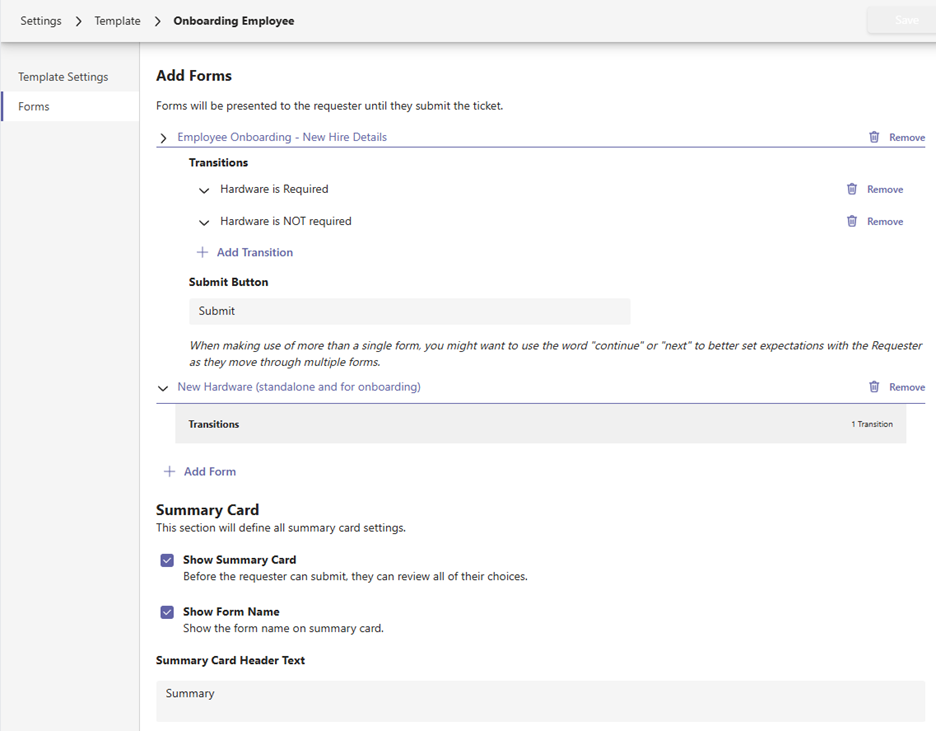
Also available within Templates is the new Forms area. Here you can add one or many forms, define the Transition to move between them as someone fills them out, and decide what happens when those conditions are met.
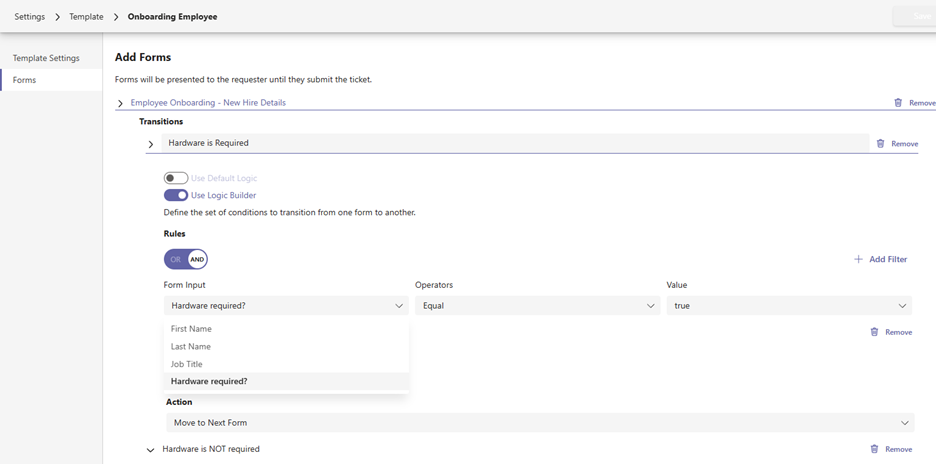
Multiple Transitions
Transitions with Logic Builder define the condition using any Input from the form
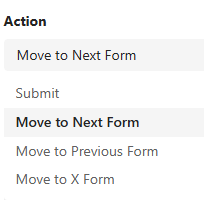
The Action associated with a Transition defines what happens when the condition is met
In the above example, we have two forms for our Onboarding Employee Template. But the second form of New Hardware will only be served if, on the first form, Hardware Is Required is checked. Here you can also configure additional options:
- Show the Summary Card: Before the requester can submit, they are presented with a card that shows their answers
- Show Form Name: The names you’ve given your forms can optionally be shown to the user who is filling them out
- Summary Card Header Text: Optionally override the name of the Summary card
These three options can be set on a Template-by-Template basis. Here’s how all of this is experienced in Teams with Tikit Virtual Agent.
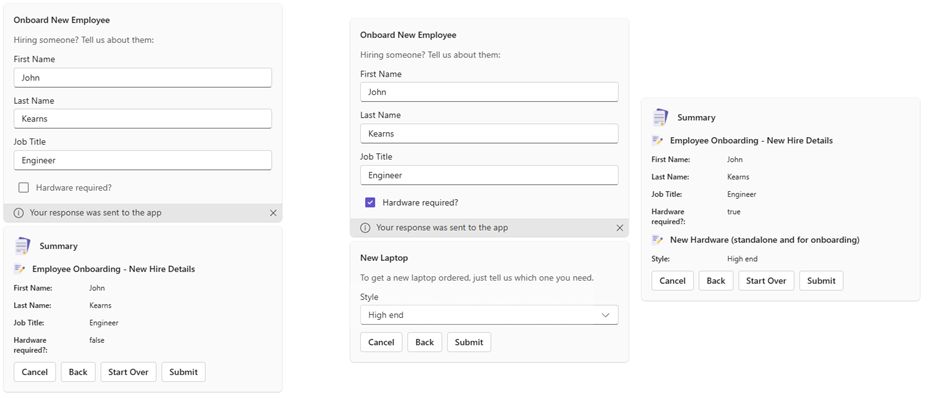
This applies whether a user requests forms via chat, starts them from the Help Card, or starts them on the Requester Portal. The first form (on the left) shows a checkbox that drives whether or not the New Laptop form is shown to the user.
- When it’s unchecked, the user will go straight to the Summary Card.
- When it’s checked, the user gets a second form, and then the Summary card.
You might also notice that subsequent forms present options for the user:
- Cancel: Abandons the submit experience
- Back: Goes back to the previous card that was filled out and maintains all current answers
- Start Over: Goes back to the very first card and erases all of the answers filled out
- Submit: Creates the ticket
Dedicated Forms Navigation
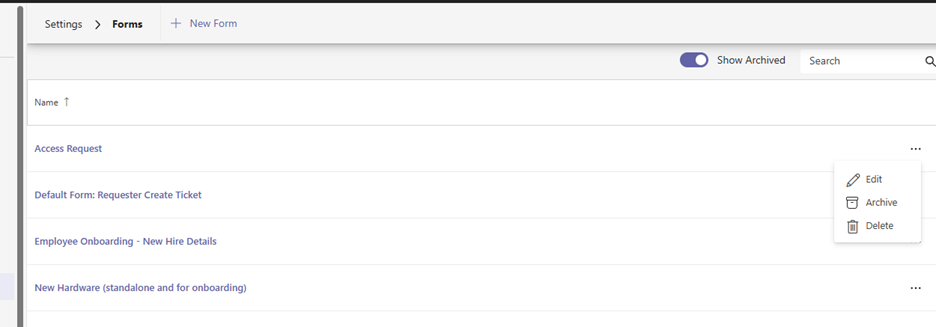
Forms can now be created, edited, archived, unarchived, or deleted in their own dedicated navigation.
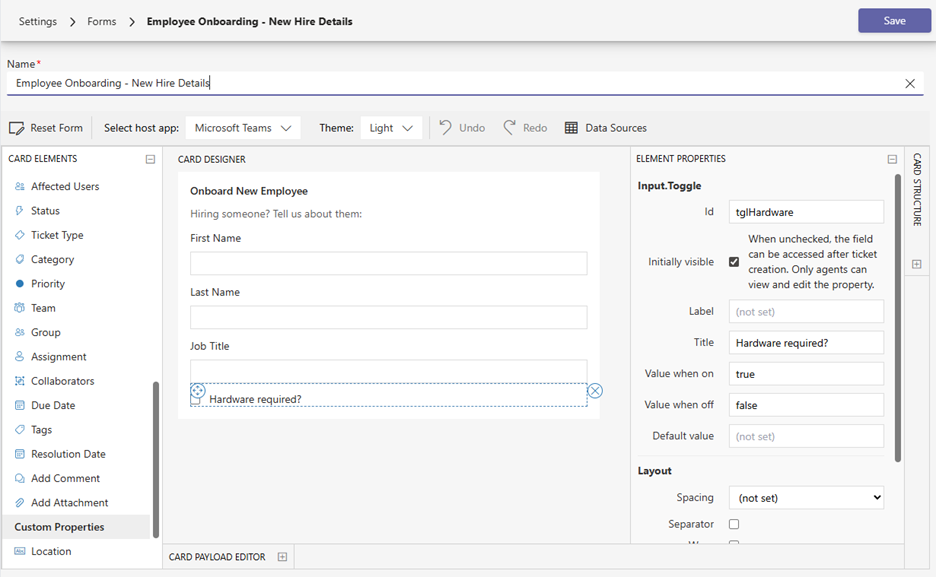
Form Designer offers you the ability to work within the Microsoft Adaptive Cards framework and add Tikit specific fields, and now to add any Custom Properties you’ve created. It also introduces the Name field along the top to give your forms context when you view them in the list or when users see them on the Summary Card.
Sending Forms (Edit Ticket/Automation)
Also arriving with the split of Forms from Templates is some new functionality specific to how you can work with Forms.
Need to resend a Form even though the Template has been applied?
Edit Ticket menu

Send Form window
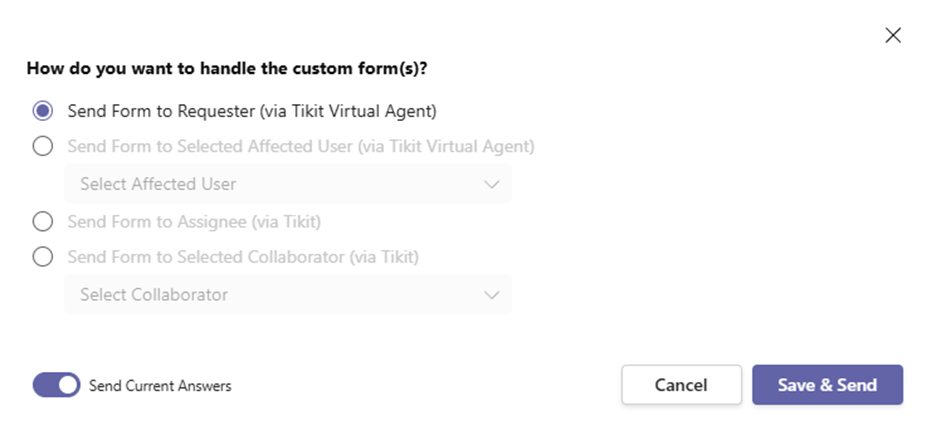
You can now send/re-send a Form to any member associated to the ticket. In addition, you can also choose to Send the existing Answers to the Form back out to the same person who filled it out or someone else on the ticket.
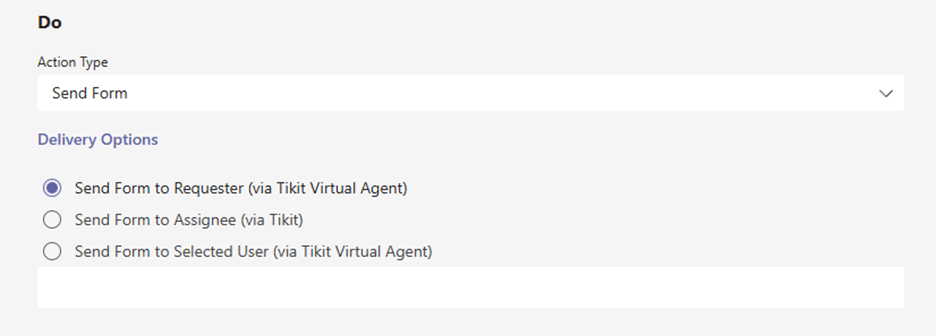
Need to send a Form via Automations?
You might already be familiar with the fact you can Apply a Template within an Automation.
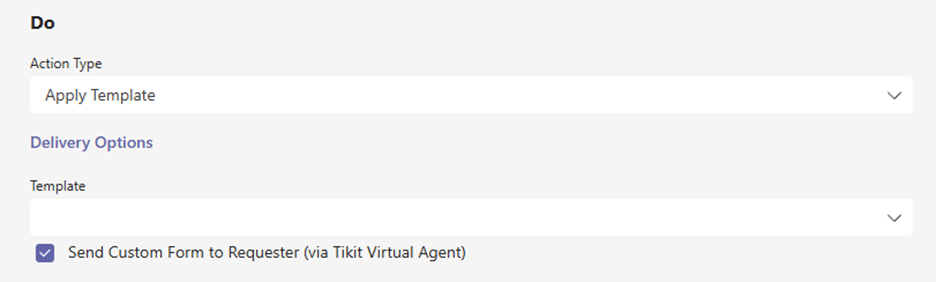
But with our latest update, you gain another Automation action: Send Form.
New Sorting and New Fields
This release also includes the capability to sort all administrative concepts such as Teams, Groups, Tags, Templates, Forms, Lifecycles, SLAs, and Automation. But beyond just sorting, we’re also adding more fields to the Templates viewto help you navigate them more easily at a glance.
See the associated Team, Group, Assignee, if a Form is related, and the associated Lifecycle.

Want to See It in Action?
Check out our webinar—Stop Letting Users Submit Garbage Tickets, Start Using Multi-Turn Cards—where the Cireson team walks you through how to help guide users through smarter, more adaptive request flows—so you get the right information from the start.